
This is for the Zebra Printers and Dymo Printer that have an IP address users can connect to.
For the first set up setps is for the Zebra Printers that have a static IP address:
1. Open Start Menu and Type in Printers & Scanners
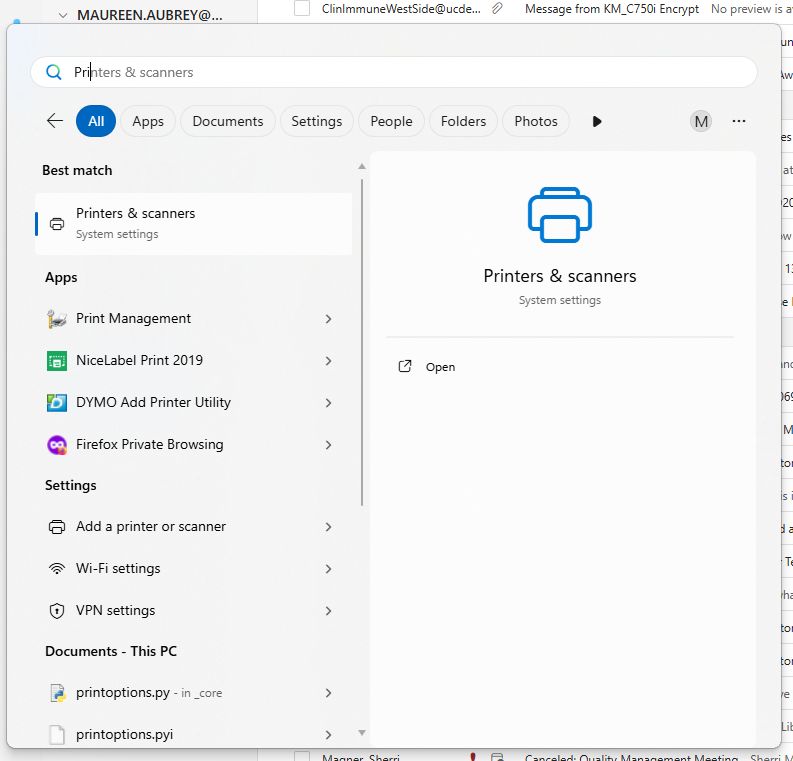
2. Click the Printer & Scanners Option and it will open all the printers you have available for the users account.
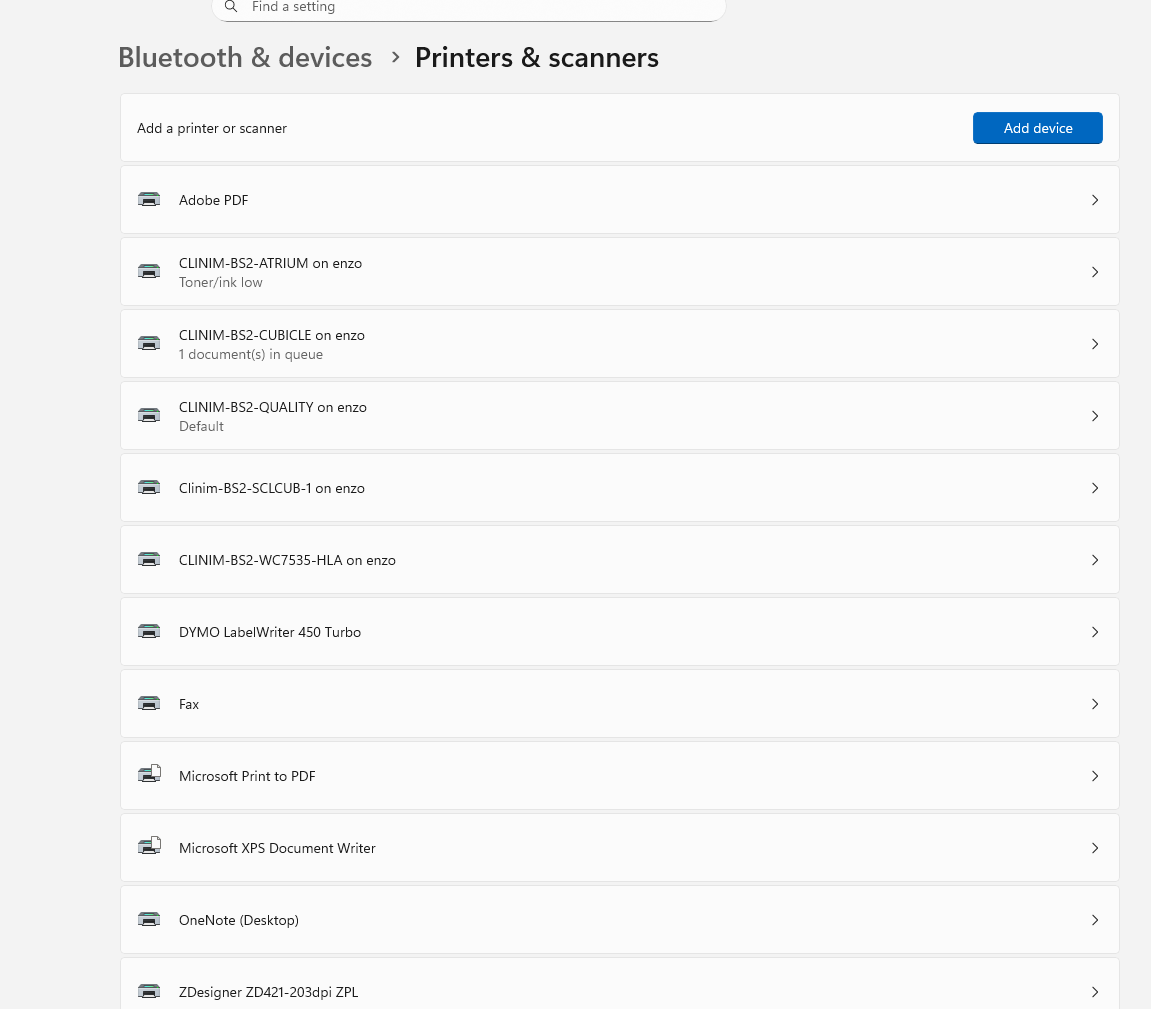
3.Click Add Device button, a list of printers will appear.
4.Scroll down till you get till option "Add a new device manually"
5. Select the option "Add a printer using an IP address or hostname" and then click next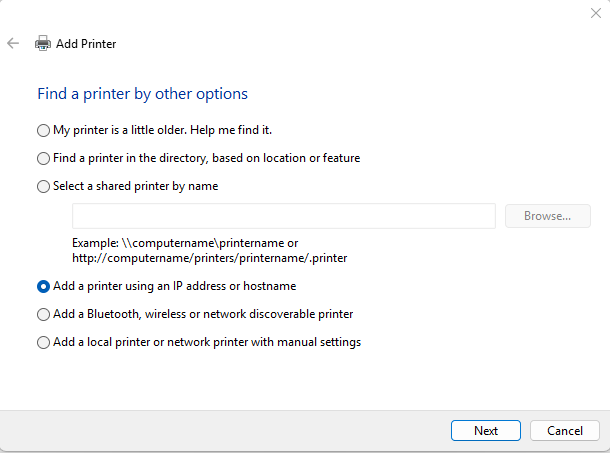
6. In Hostname or IP address text box, type in the IP address for the Zebra Printer that one needs to connect to. 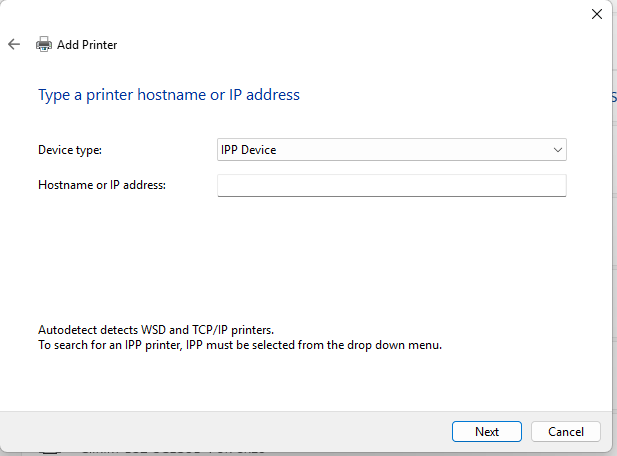
o LP55 (In Stem lab main area)
IP: 140.226.50.244
Subnet: 255.255.255.248
Gateway: 140.226.50.241
o CLINIM-EPIC-2101B (Clean Room B1)
IP: 140.226.50.245
Subnet: 255.255.255.248
Gateway: 140.226.050.241
o CLINIM-EPIC-2101A2 (Clean Room A2)
IP: 140.226.50.36
Subnet: 255.255.255.240
Gateway: 140.226.050.033
Click Next until it is added.
If it errors out, check with IT to fix it.
For the first set up setps is for the Dymo Printer that have a static IP address:
1. Open Start Menu and Type in Printers & Scanners
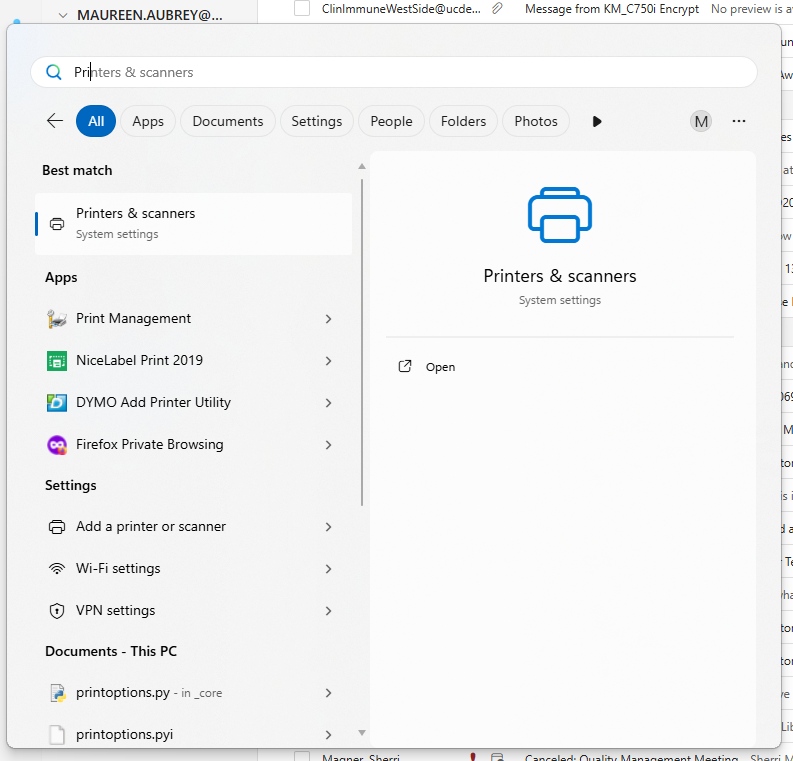
2. Click the Printer & Scanners Option and it will open all the printers you have available for the users account.
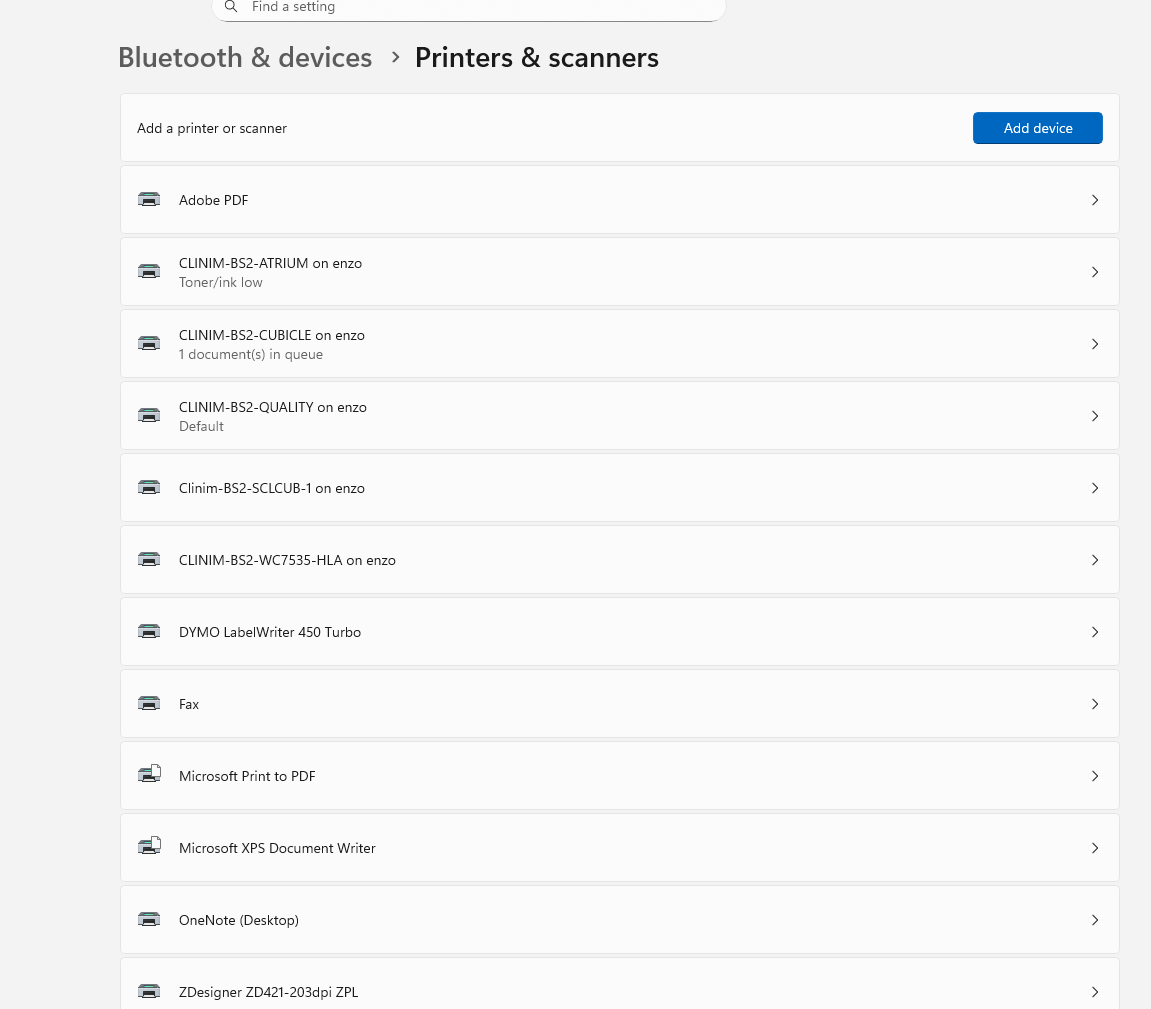
3.Click Add Device button, a list of printers will appear.
4.Scroll down till you get till option "Add a new device manually"
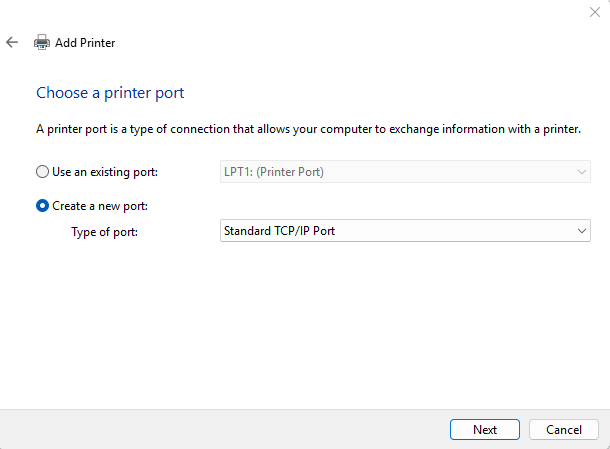
5. Choose “Create a new port” and then in the drop down of “Type of port”, choose “Standard TCP/IP Port”. Then click “Next button
6. In “Hostname or IP address:” and “Port name:” type in ip address 140.226.50.34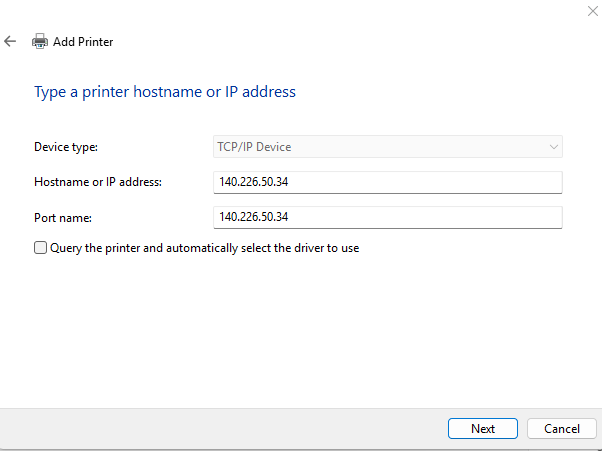
7. Then select “Custom” and then hit the “Settings…” button
8. In the page that appears. Confirm it looks like the image below. Then click “OK”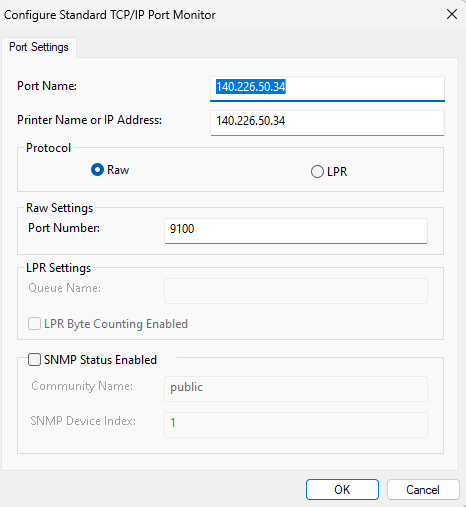
9. Then click the “Next” button
10. Then in the install printer driver page, select DYMO under “Manufacturer” and then under printer choose DYMO LabelWriter 450 Turbo. Then select “Next” button
11. Name the printer “DYMO LabelWriter 450 Turbo”. Don’t have the “Set as the default printer” clicked. Then hit “Next” button
12. Click “Print a text page”
13. Then click “Finish”